
Connect to a server
5 minute read · SSH Terminal
Open a terminal on a server you control when your project needs remote work. A local project shell and an SSH session run on different machines; keep that distinction visible.
- Open directly from search
- Save and verify a host
- Handle host identity changes
- Use the terminal and agent tools deliberately
- Work in a terminal without losing context
- Hosts, keys and terminal controls
Open directly from search
Use Vortex Search → SSH to search saved host names and addresses and open the chosen host from your project or chat. Terminal opens over your existing work; Vault unlocking and host verification still apply. See Vortex Search.
Save and verify a host
Create a host with a recognizable name, address, port and username. Choose password or key authentication. A key may come from a selected file, pasted content or a Vault reference, with a passphrase when required. Keep the secret in the connection form rather than in a conversation or public command example.
Connect in a session tab and inspect the connection state and logs. A connection attempt is not yet an authenticated shell. Confirm the expected server through a harmless identification step appropriate to your environment before issuing changes. Disconnect explicitly when the session is no longer needed.
Handle host identity changes
Known-host fingerprints have a separate management surface. Compare a new or changed identity with a trusted source for the server. A changed fingerprint could be a legitimate rebuild, a wrong destination or an interception risk; blindly accepting it because a task is in Auto loses the value of the check.
When authentication fails, distinguish an unreachable host from a rejected username, key or passphrase. When a shell connects but a command is denied, inspect the account's remote permissions instead of replacing working credentials.
Use the terminal and agent tools deliberately
Resize, search and scroll the session as needed. Font, cursor, scrollback and theme are terminal preferences; changing them does not change the host. Port forwarding, Laravel Tinker and database discovery operate through their specific supported workflows and should retain the same target awareness.
For agents, ssh_read_command is limited to strictly read-only inspection. ssh_exec_command handles supported remote commands. In Auto, an authorized ordinary command on the named host runs directly without a second agent-level confirmation; Supervised and Auto-edit ask before changes, and Plan is read-only. Redirected or ambiguous shell text is not automatically read-only, and mass destructive commands remain blocked. Resource listing resolves useful IDs without returning passwords. Follow tunnels when a private service needs this host.
Work in a terminal without losing context
Open the saved host in a session tab and verify the remote hostname and working directory before making changes. Resize, search and scroll the terminal to inspect output; disconnect or reconnect through the session controls. Font, cursor and scrollback preferences affect readability, not the remote command's permissions.
A local project shell runs on your computer in the project's checkout. An SSH terminal runs on the remote host. The same command can affect entirely different files in those two tabs. Use clear host names and keep the environment visible when asking an agent to inspect a service.
Start with bounded inspection such as: “On the staging host, check whether nginx is active and show the last 30 relevant error-log lines.” In Auto, an authorized bounded read runs directly. For a specifically requested change, name the command and target, such as restarting that same service; authorized ordinary commands can also run directly in Auto. Do not paste private keys or passwords into a conversation to make the connection work. A selected key file, Vault key or pasted key belongs in the saved host's protected authentication fields. Confirm host-key changes against a trusted server identity before reconnecting. Tunnels can reuse this saved host without exposing a private database port.
Related guides: tunnels, remote files.
Hosts, keys and terminal controls
| Field / control | What it does |
|---|---|
| Hosts | Lists saved SSH configurations. Opening a host starts a session using its saved details. |
| Name / Tags | Human-readable organization, independent of the remote machine's hostname. |
| Host / Port | SSH server address and port; the usual SSH port is 22, but the server may use another. |
| Username | Remote operating-system account, such as a dedicated deployment user. |
| Password / SSH key | Chooses authentication method. A host's password and a key's passphrase serve different purposes. |
| Key source | Selects a private-key file, pasted private-key content or an existing Vault key. |
| Private key path / content | The private credential used to authenticate, not the public .pub file installed on the server. |
| Vault key | Reuses a key saved in Keys. |
| Passphrase (optional) | Unlocks an encrypted private key. Leave it empty only when the key does not require one. |
| Keys → Load from file | Reads a private key into the key editor. Review its name and account before saving. |
| Edit key / Delete key | Changes or removes the saved key. Removing it can affect hosts that reuse it. |
| Known Hosts | Lists trusted server fingerprints. Search narrows this list. |
| Remove trusted fingerprint | Removes remembered trust; a future connection must verify the host again. It does not change the remote server's key. |
| New | Starts an available local or remote terminal session. |
| Find output / Previous / Next / Close find | Searches retained terminal output and moves among matches. |
| Session close | Ends or closes the selected session through its supported flow. Remote processes may have their own lifecycle. |
| Logs | Opens the available connection/session logs for diagnosis. |
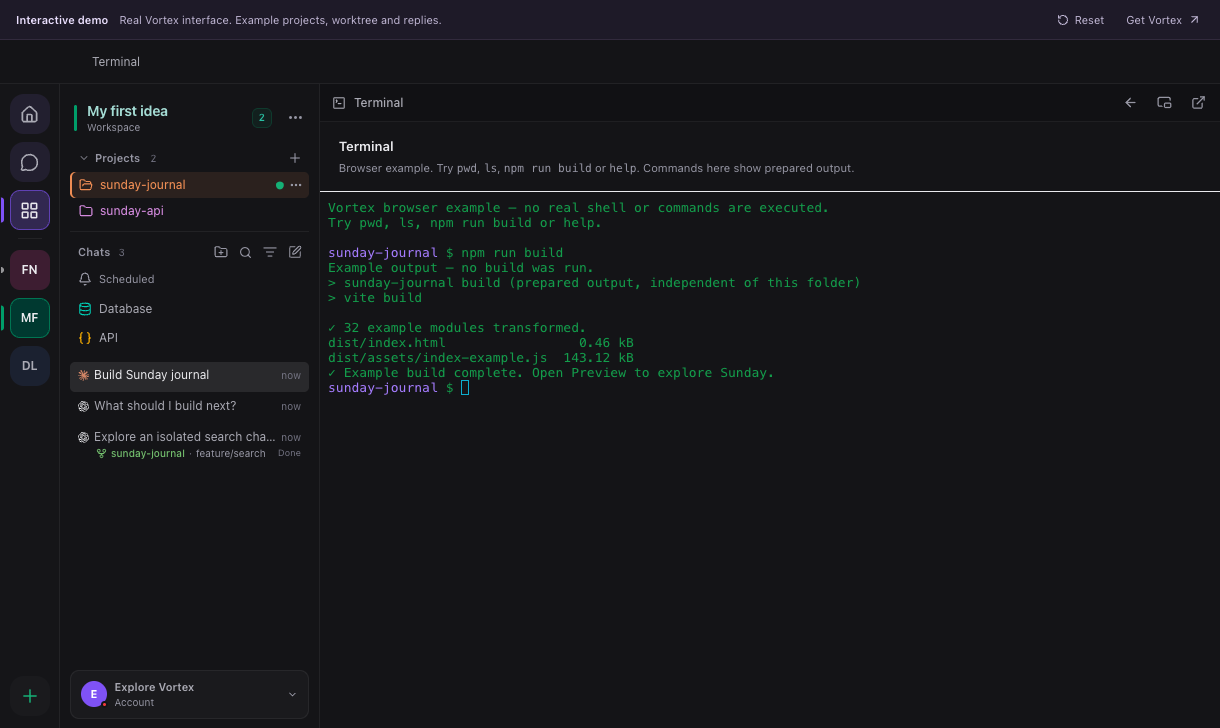
This screenshot shows the demo terminal, which produces prepared output and does not execute shell commands. In the desktop app, commands entered into a local or SSH terminal execute in that session's real environment.
If a known host changes its fingerprint, confirm the new fingerprint through a trusted server-administration channel before trusting it. A successful password login does not establish that the machine is the intended one. Continue with port forwarding and project tools.