
Build your first app
7 minute read · Getting Started
Start with a small idea you can describe in a few sentences. In this guide, you will ask a coding agent to create a simple article website, open it inside Vortex and make one change. You can follow the steps without writing code.
- 1. Open Vortex and connect an agent
- 2. Describe a small, useful result
- 3. Follow the build
- 4. Open the app and try it
- 5. Make the next change
- 6. Continue at your own level
- A small checklist before you call it finished
- The workspace, by area
1. Open Vortex and connect an agent
Vortex supports macOS (Apple silicon and Intel with a Universal build), Windows and Linux x64 (AppImage or deb). Choose an available package from Downloads; the installation guide explains each format. Open Vortex and sign in to your Vortex account. Complete the email verification if requested. Follow the Vault setup or unlock screen and keep its recovery information somewhere safe. The Vault protects your saved work and connection details.
Open Settings → AI providers. Choose an agent you have an account with: Codex, Claude Code, Google Antigravity, Grok Build or Kimi Code. If it needs installation, use Install and follow the prompts. Then choose Sign in, finish the provider's connection flow and return to Vortex. Look for the connected account status.
You usually do this setup once; Vortex keeps the connection until you sign out or the provider asks you to reconnect. Your Vortex account and your coding-agent account are separate. The provider supplies the AI and sets its usage allowance. Vortex is free; your coding-provider subscription remains separate.
If the chat says Set up an agent to start chatting, use its setup button to return to this screen. If a provider rejects your account, use an eligible account or another supported agent; Vortex cannot change that provider's eligibility.
2. Describe a small, useful result
From Home, start a New chat and choose your connected agent in the message box. You can ask it to create a project for you. A project is the folder containing your app; a workspace groups related projects. You do not need an existing code repository to begin.
Try this message:
Create a new project called Small Stories. Build a simple website with three sample articles. Show each article's title and a short introduction, and let me open an article to read it. I do not know how to set up a project, so guide me through any setup I need to approve. Start it and show me the result in Vortex Preview. Keep this first version local.
A useful first request says what the app does and how you will use it. You can add a screenshot or sketch to show a layout you have in mind. You do not have to choose a database or framework before explaining the result.
If you already have an app, use Open project to select its folder or Clone repository to copy its Git repository. Start your conversation there so the agent works with that project's files.
3. Follow the build
The conversation shows the agent's progress and the actions it is taking. It may need to prepare tools on your computer before the app can run. Read any approval request, check what it will do and allow it when it matches the work you asked for. If you are unsure, ask the agent to explain it in plain language.
Keep the task small until you have a working first version. You can send another message while the agent is busy:
Use the article titles “A quieter morning”, “A weekend outside” and “Learning something new”.
Vortex delivers the message during the current work where supported, or queues it for the next turn. The message status shows which happened. Use Stop if you want to end the current work.
A failed setup step stays available with its output. Ask the agent to explain and fix that step; do not begin a second copy of the project just because the first attempt stopped.
4. Open the app and try it
When the app is ready, use the globe Open browser icon in the project's toolbar, just before Workspace settings. The app opens as an ordinary tab, and website tabs sit beside it in the same panel; if the app's tab is missing, choose Open app. If the app has stopped, use Start app first. You can also ask:
Open the preview for Small Stories and check that all three articles appear.
Try the result yourself. Open each article, check its title and text, and return to the list. If the app does not load, tell the agent what the preview shows and ask it to inspect the project's runtime output.
The preview is your locally running app. Seeing it there does not publish it on the internet.
5. Make the next change
Continue in the same project chat so the agent keeps the context:
Add a search box above the articles. Typing part of a title should narrow the list. Show a helpful message when nothing matches.
After the change, reload the preview and try a matching title, a title that does not exist and an empty search. Specific observations help the agent fix problems: “Searching for morning shows no results” is more useful than “It is broken”.
For an app that saves information, check that the saved item is still there after reloading. For a database-backed article site, ask the agent to store the three articles, read them through the app and verify that the preview displays the stored records. Vortex includes a supported Laravel + React starter for this kind of project.
6. Continue at your own level
You can keep working through conversation and preview. When you want more detail, open the project's files or changes panel, use Git to save a commit, or inspect the app's data in Database. Terminal, API Client, Mail and Signals are available when your project needs them. You can ask the agent to explain what it changed before you review the code yourself.
Your project files remain on your computer. Vortex synchronizes supported workspace and conversation data; opening the same account elsewhere does not move the running app or its folder to that computer. Keep Vortex and the computer available while a local agent or scheduled task is working.
Every Vortex feature is free, with unlimited workspaces, projects, saved chats and connections. Your provider account supplies the coding agent. Optional cloud storage has technical limits; read cloud retention before relying on it as an archive.
Continue with projects, agents and preview, local scheduled tasks or the guides to go deeper.
A small checklist before you call it finished
Keep the first version small enough to check yourself. You should be able to explain what the app does, open it again from the same project and show a concrete successful action. For Small Stories, read all three articles, search for one title, clear the search and try a term that matches nothing. If you added editing, save a fictional article and verify it after reload.
If something fails, continue in the same chat with the exact observation. Ask the agent to inspect the failed step and preserve working parts. A useful message is: “The search works, but the new article disappears after reload. Keep the current layout and fix persistence; show me the saved row and API response.”
Before closing Vortex, check unfinished drafts, active runs and pending sync. Use a manual Git commit when you want to record a reviewed working version. A commit is local until you explicitly push it, and Preview is local until you deliberately publish the project. Your next feature can begin from that same app and conversation history.
The workspace, by area
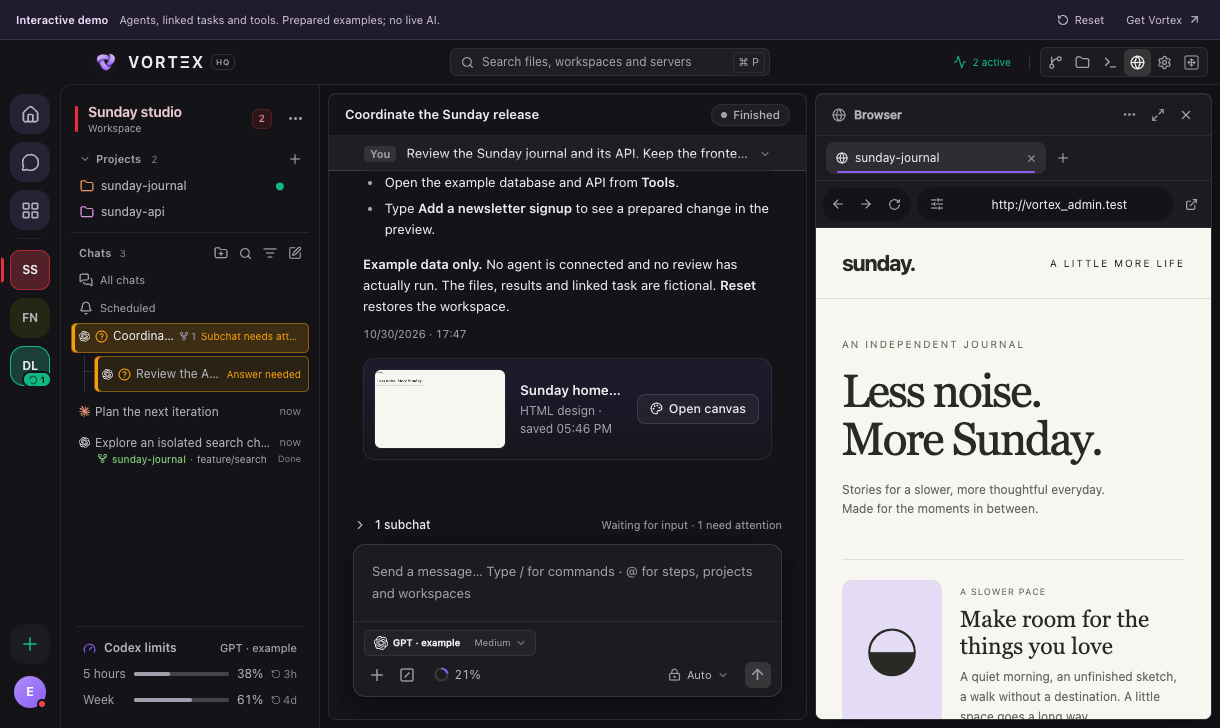
The screenshot is captured from the real browser demo with fictional data. The workspace rail is on the far left, followed by projects and saved conversations. The central chat holds history, agent progress and the message composer. Browser on the right holds the app and website tabs. Desktop-only controls such as account sign-in are explained in their own guides; the demo does not perform them.
| What you want to inspect | Detailed control reference |
|---|---|
| New chat, project choice, multiple chats, expand/restore | Conversations and drafts |
| Models, reasoning, Fast mode and usage indicators | Models and provider usage |
| Files, editor tabs, diff icons and panel positions | Files and change review |
| Stage, commit, history, branches and remote actions | Git and manual commits |
| Connection fields, table data, schema and export | Database connections |
| Request fields, OAuth, scripts and response controls | API request editor |
| SSH host fields, keys, trust and terminal sessions | SSH hosts and keys |
| Transfer and remote-edit controls | FTP / SFTP |
| Captured mail and responsive email previews | Mail inspection |
| Event filters, notification and sharing controls | Signals |
| Theme, fonts, notifications, shortcuts and defaults | Settings reference |
Hover an icon to see its action name. A disabled action can depend on the selected project, provider, connection permissions, running job or available data. Read that state before expecting every control to be available in every screen.